
A composite item is a stack item composed of two or more items.
To create a composite item with library items:
- Sign in to the admin interface.
- Create a new, empty sequence. The new sequence sits at the top of the list on the Sequences tab.
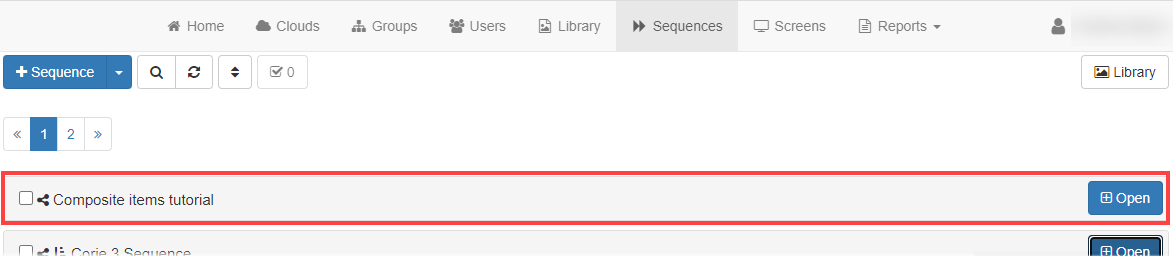
- Click the Open button (
 ) to expand the new sequence.
 - Click the Add new item button (
 ) to open the Stack item dialog.
 - On the Display tab, select Multiple items at the same time from the top dropdown list.
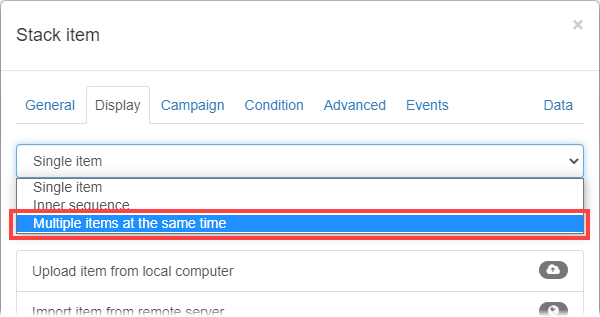
The options available on the dialog change to reflect your selection.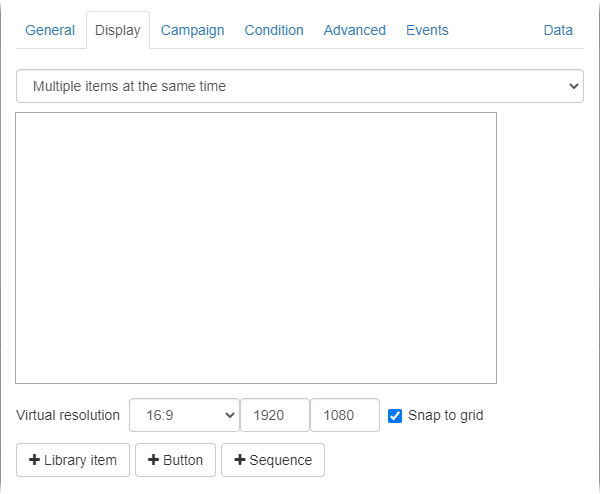
- Click the Add Library item button (
 ) to open the library in a new dialog.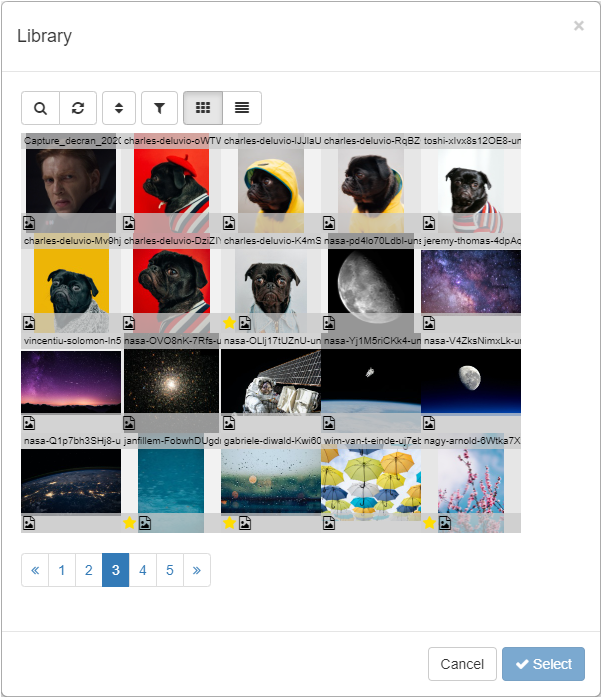
- Select a library item and click Select to add it to the window on the Stack item dialog.
The item is labelled 1.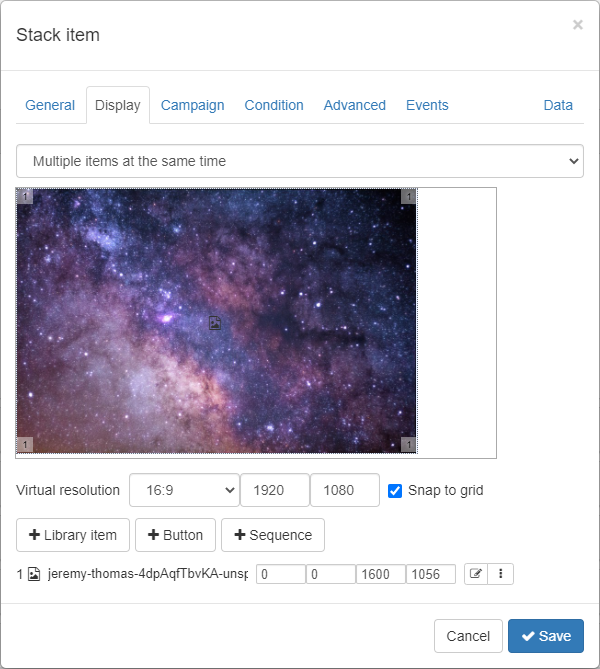
- Repeat steps 6 and 7 to add three further library items to the stack item. The items are labelled sequentially and their details are listed below the window.
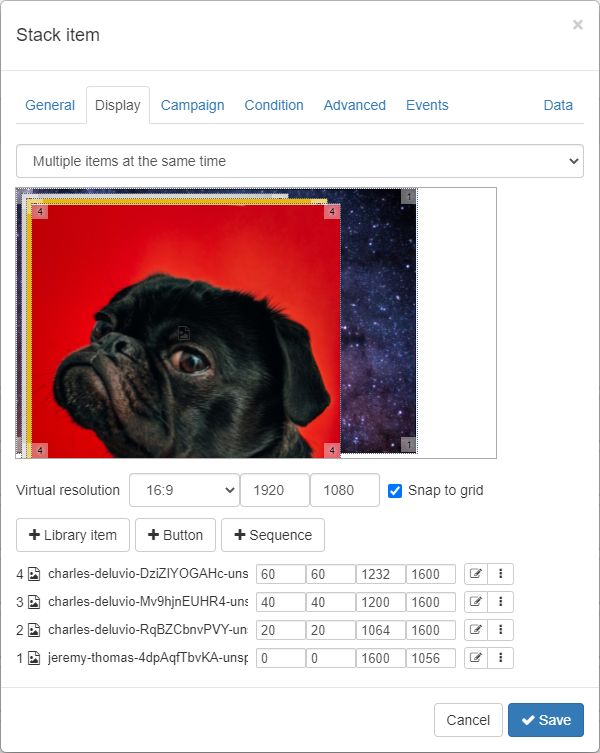
- The library items are placed one on top of the other, with 1 being at the bottom. You can change their order, edit their layout, and add events to the individual items.
- To change the order of an item, click the Options button (
 ) and select Move to top, Move up, Move down, or Move to bottom to shift it up or down in the list.
 - To reposition an item, hover the cursor over the centre of an item until it changes to
 , then click and drag to position the item in the window. Alternatively, enter the coordinates of the top left corner in the first two boxes.
- To resize an item, click and drag the corners or edges of the item. Alternatively, enter the dimensions in the last two boxes.

- To edit an item or add an event, click the Edit button (
 ) to display the Composite item dialog.
- To change the order of an item, click the Options button (
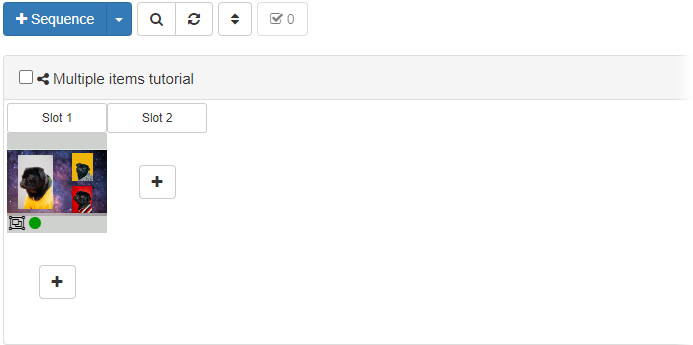
- When the items are positioned it correctly, click Save to save the stack item and close the dialog. The stack item is added to the sequence.
Comments
0 comments
Please sign in to leave a comment.